Lotus365 Session Expired Error Causes and Fixes

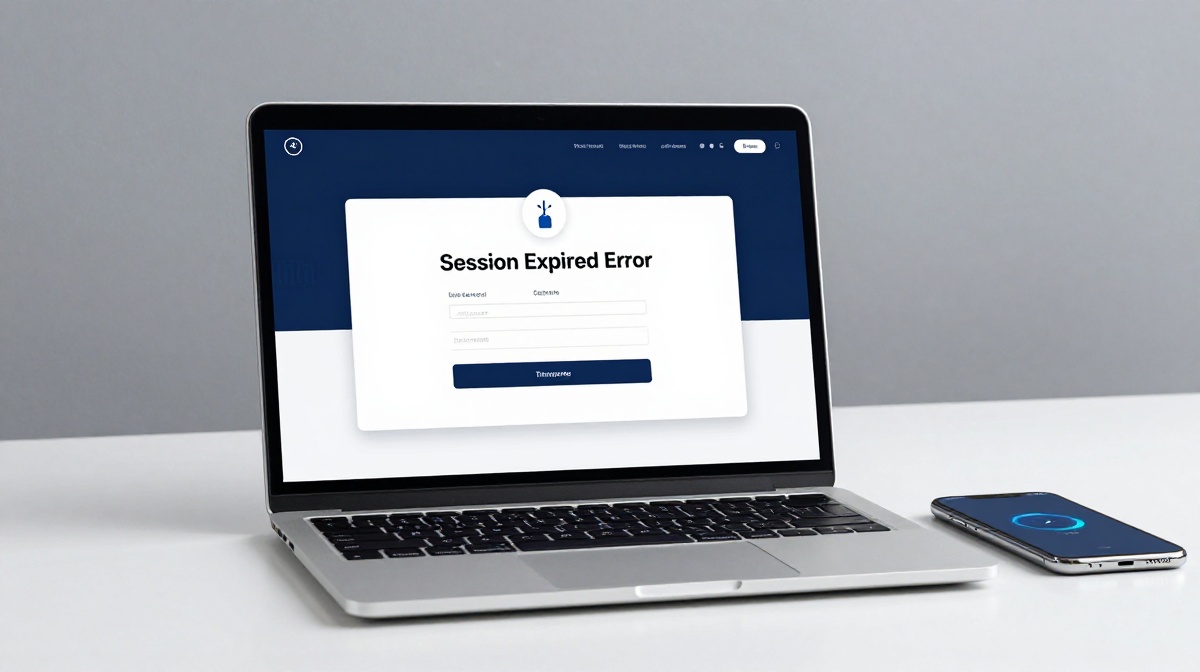
You were in the middle of a game or checking your account on Lotus365, and then it happened. The screen showed a session expired message and logged you out. Now you can’t get back in, or the error keeps coming back even after you log in again.
This is one of the more common issues users report on betting and gaming apps, and the fix is usually simple once you understand what’s actually going wrong.
Important note: Online betting and real-money gaming platforms, including Lotus365, operate in a legally complex space in India. The Promotion and Regulation of Online Gaming Act, 2025, has significantly tightened restrictions. Laws vary by state, and several states including Andhra Pradesh, Telangana, and Maharashtra prohibit online betting. Please check the legal status of online gaming in your state before using any such platform. If you are under 18, do not use this platform. This article covers only the technical troubleshooting aspect.
What Does Session Expired Actually Mean?
When you log into any online platform, including Lotus365, the server creates a temporary record of your login. This is called a session. Think of it like a token the server gives you that says, Yes, this person is logged in. That token has a time limit. When the token expires or gets deleted, the server no longer recognises you as a logged-in user. It sends back the session expired message and asks you to log in again.
This is a security feature, not a bug. Banks, government portals, and apps all do it. The problem is when the session expires too quickly or keeps expiring even after you log back in.
Common Causes of the Lotus365 Session Expired Error
Understanding the cause helps you pick the right fix. Here are the most frequent reasons this error appears.
1. The App or Browser Was Left Idle
If you opened the Lotus365 app or website and then left it sitting on your screen for a while, the session will time out. This is the most common cause by far. Most platforms set this idle timeout to anywhere between 15 and 30 minutes for security reasons. Coming back to the app after a break and trying to click something will trigger the error.
2. You Used the Browser Back or Forward Button
This one catches a lot of people. If you are using Lotus365 through a mobile or desktop browser not the app and you press the back button to return to a previous page, the session can break. The server expects a fresh page request, not navigation from a cached browser history. Union Bank of India’s own official portal lists this as a known cause of session errors on login-required web pages.
3. You Logged In from Two Devices or Two Tabs
If you open Lotus365 on your phone and also on a laptop at the same time, or even in two browser tabs, one session can cancel out the other. The platform sees two active logins and terminates the older one. You’ll get the session expired message on whichever screen you weren’t actively using.
4. Corrupted or Outdated Cache and Cookies
Your phone or browser stores old data from websites to load them faster next time. Over time, this stored data called cache and cookies can become outdated or corrupted. When the app tries to match this old stored data against the current server state, it fails. The result is a session error even though your password is correct.
5. Unstable Internet Connection
A dropped connection mid-session tells the server that your device has gone offline. When you reconnect, the server may have already ended your session. This is common with mobile data in areas like metro stations, lifts, or while switching between 4G and Wi-Fi.
6. You Opened a Saved Link or Bookmark
If you saved a direct link to your Lotus365 account page or game page and try to open it directly, the server won’t have an active session for that URL. It will immediately show you the session expired error. These saved or bookmarked deep links bypass the login flow.
7. The App Version Is Outdated
An outdated version of the Lotus365 app may not handle session tokens the way the current server expects. This mismatch can cause the app to lose the session or fail to renew it correctly. This is especially common after the platform pushes a server-side update without requiring users to update the app.
8. Server-Side Maintenance
Occasionally, the platform itself goes through scheduled maintenance. During this time, all active sessions are cleared. If you try to use the platform during or just after maintenance, you will see the session expired message no matter what you do on your end. Waiting 15 to 30 minutes and trying again usually resolves this.
How to Fix the Lotus365 Session Expired Error
Work through these steps in order. Most users are back in by step 3 or 4.
Step 1: Log Out Fully and Log Back In
Don’t just close the app. Tap the logout button first, then close the app completely, reopen it, and log in fresh. This creates a brand new session rather than trying to revive the expired one.
Step 2: Check Your Internet Connection
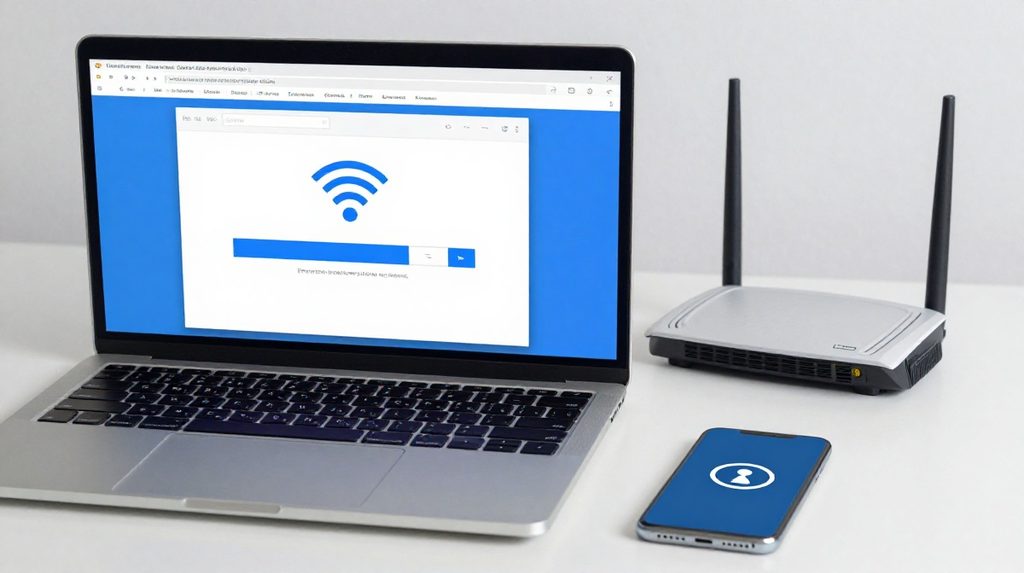
Switch from mobile data to Wi-Fi, or vice versa. A weak or fluctuating signal is often behind session drops. Once the connection is stable, try logging in again.
Step 3: Clear the App Cache (Android)
Go to Settings > Apps > Lotus365 > Storage > Clear Cache. This removes old session data without deleting your account or login details. Restart the app after clearing. If you are using Lotus365 through a browser like Chrome, go to Settings > Privacy > Clear Browsing Data, select Cookies and Cache, and clear it.
Step 4: Close Other Sessions
If you are logged in on multiple devices, log out from all of them. Then log in fresh on just the one device you want to use.
Step 5: Update the App
Check if a newer version of the Lotus365 app is available. An outdated app may have session handling bugs that the latest version has already fixed. You can find the updated version through the lotus365 apk download page for Android users.
Step 6: Reinstall the App
If the error keeps coming back after clearing cache and updating, uninstall the app completely. Restart your phone, then install a fresh copy from the official source. This removes all corrupted files and gives you a clean start.
Step 7: Contact Support

If none of the above steps work, the issue may be on the platform’s end, a blocked account, or a server-side session problem. Reach out to the lotus365 app support team through the official contact options. When you write to them, mention the exact error message, your device model, and what steps you already tried. This helps them resolve it faster.
Quick Reference Table
| Cause | Who It Affects Most | Fix |
|---|---|---|
| Idle timeout | All users | Log out and back in |
| Browser Back button | Browser users | Use the login page directly |
| Two active sessions | Multi-device users | Log out from all, log in once |
| Corrupted cache | App and browser users | Clear cache and cookies |
| Dropped internet | Mobile data users | Switch network, log in again |
| Saved/bookmarked link | Browser users | Always start from the homepage |
| Outdated app | Android users | Update or reinstall the app |
| Platform maintenance | All users | Wait 30 minutes and retry |
How to Stop This Error from Coming Back
A few habits make a big difference. Always log out when you’re done with a session, especially on a shared phone or public Wi-Fi. Don’t leave the app open in the background for long periods. Avoid using the browser back button once you are inside the platform. Keep the app updated, because new versions usually come with fixes for exactly these kinds of session issues.
If you use the browser version often, bookmark only the homepage not a deeper page, and always start your session from the login screen rather than a saved game link.