Menus, Tabs and Navigation Labels in Apps Explained
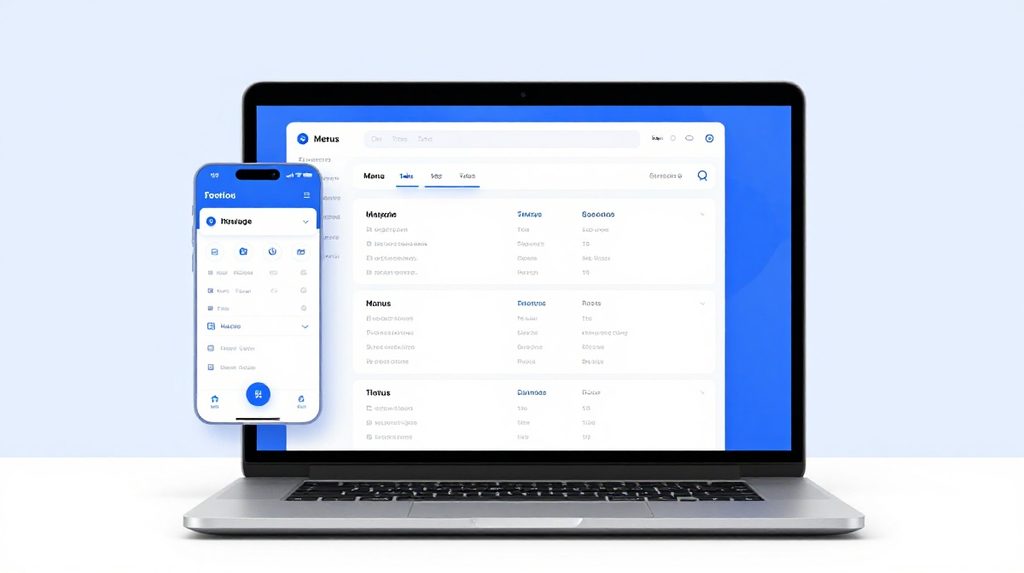
If you’ve ever opened an app and stared at the screen not knowing where to tap first, you’re not alone. Menus, tabs, and navigation labels are the building blocks of how any app is organised, and once you understand them, using any new app becomes much easier. This guide explains each one in simple language, with examples that make sense for Indian users.
What Is a Menu in an App?
A menu is a list of options that helps you move between different parts of an app. Think of it like the index page of a textbook. You don’t read the whole thing at once. You go to the index, find what you need, and jump there directly.
There are a few common types of menus you’ll see on your phone.
The hamburger menu looks like three horizontal lines stacked on top of each other, usually in the top-left or top-right corner. Tap it, and a full list of sections slides out. Apps use this when they have too many sections to show all at once on screen.
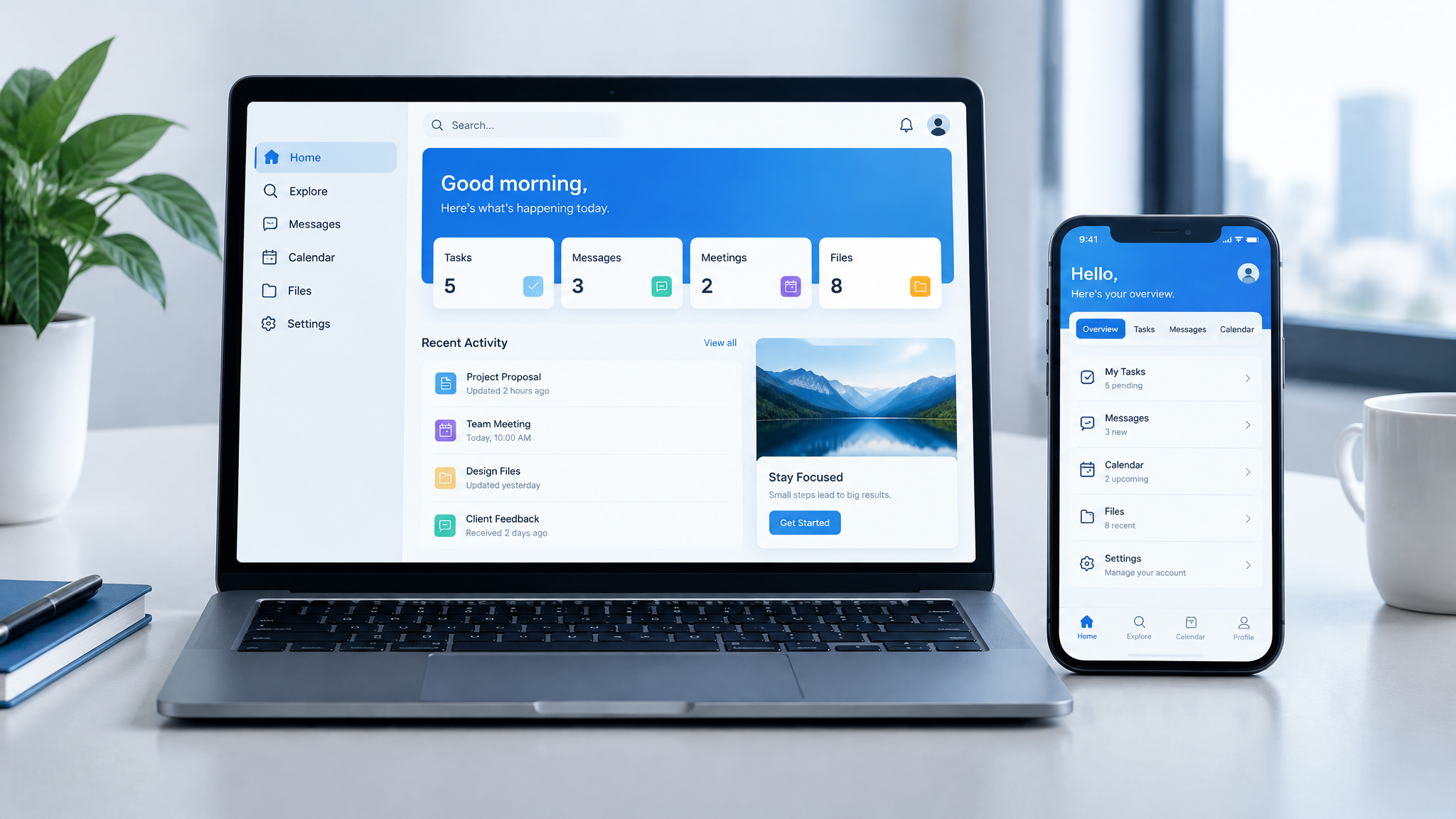
The bottom menu bar is the row of icons sitting at the very bottom of your screen. This is the most common type in Indian apps because it’s easy to reach with your thumb. Each icon leads to a main section of the app.
Dropdown menus appear when you tap a single word or label, and a small list falls open below it. These are common in filters or settings pages.
What Are Tabs and Why Do Apps Use Them?
Tabs are the small clickable labels you see lined up in a row, usually near the top of a page or section. They work like the dividers in a school notebook. Each tab shows a different view of the same topic without taking you to a completely new page.
For example, if you’re on a cricket match page, you might see tabs labelled Overview, Scorecard, and Commentary. Tapping each one changes only the content in the middle of the screen, not the whole page. This saves loading time and keeps things tidy.
Tabs are helpful when a single topic has more information than fits on one screen. App designers use them so you don’t have to scroll endlessly.
What Do Navigation Labels Mean?
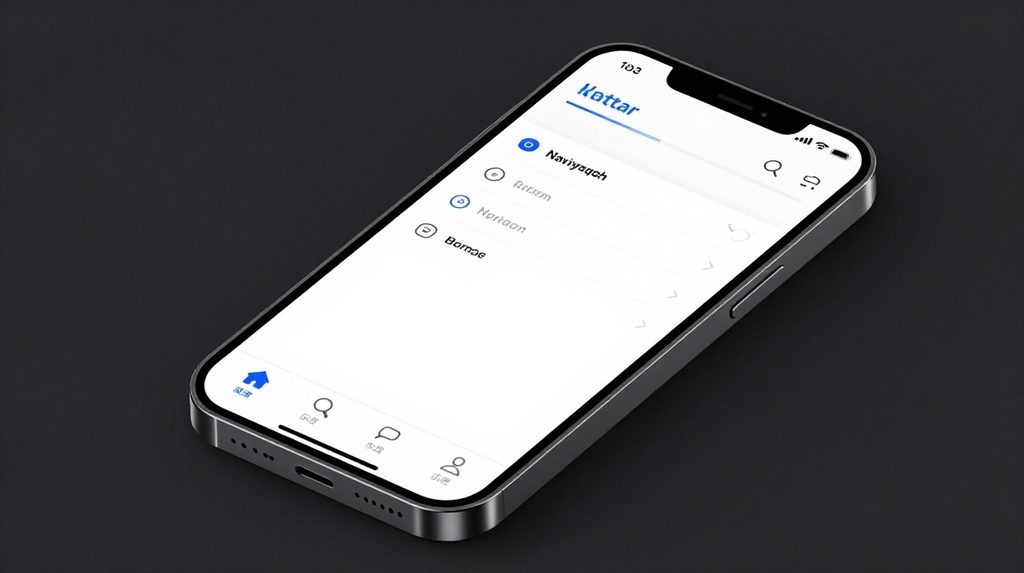
Navigation labels are the words written below icons, or on buttons, that tell you what that section contains. They sound simple, but in certain apps, especially sports or gaming platforms, the labels can be confusing if you’ve never seen them before.
Here are some common labels and what they actually mean:
| Label | What It Means |
|---|---|
| Home | The main page you see when you open the app |
| In-Play / Live | Events or matches happening right now |
| Markets | The different types of bets available on one match |
| My Bets | A record of all the bets you have placed |
| Promotions | Offers, bonuses or free credits the app is running |
| Account / Profile | Your personal details, balance and settings |
| History | Past activity, transactions or match results |
| Support | Help section, usually with chat or FAQ options |
If you use the lotus365 app, you’ll notice that the bottom navigation bar follows a similar pattern. The labels are kept short, but each one points to a clearly defined section. Spending one minute reading every label before you start using any app will save you a lot of confusion later.
How Navigation Is Different on Mobile vs Desktop
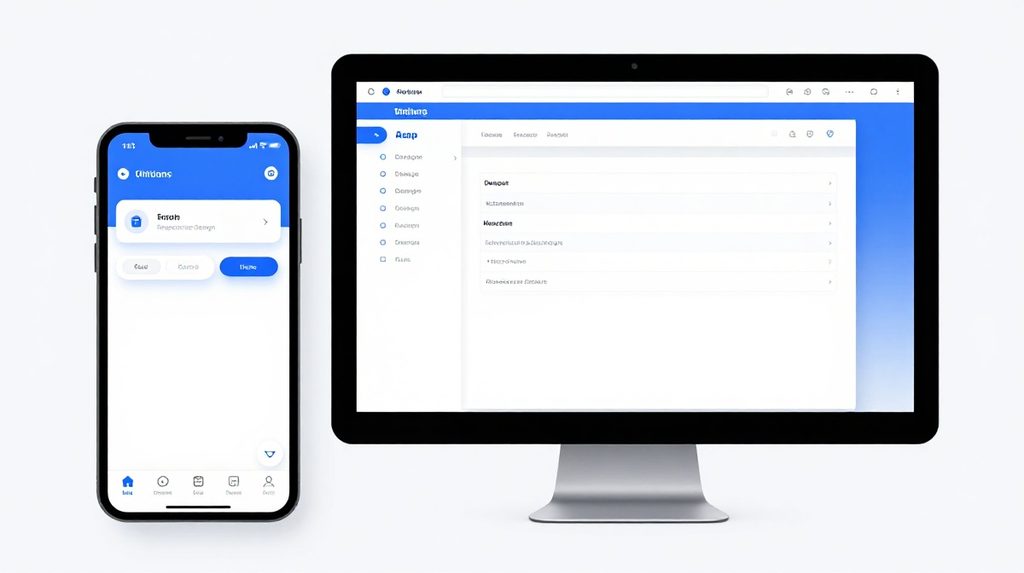
On a desktop website, menus are usually spread across the top of the page in a horizontal bar. You hover over them with your mouse and sub-options appear.
On mobile, the same content has to fit a much smaller screen. So designers move things around. The top bar gets simplified, the main menu often shifts to the bottom, and tabs take over the middle sections. The content is the same. Only the layout changes.
This is why the same platform can look quite different when you open it on a phone compared to a laptop.
Tips for Reading Any New App’s Navigation
You don’t need to memorise anything. A few habits will help you feel comfortable in any new app within minutes.
Start by tapping every icon on the bottom bar once, just to see where it goes. Then look for a hamburger or three-dot menu, because that usually holds the less-used but still important sections like Help, Settings, or Withdrawal options.
If a label is unclear, tap it anyway. Most apps show you a brief title at the top of whatever page you land on, which confirms what that section is for. You can always go back.
For apps like lotus365 apk that you download and install directly, the navigation structure is often identical to the browser version. So if you’ve used the website before, the app layout will feel familiar.
Please note: Online gaming and betting apps operate under different legal rules across Indian states. Some states prohibit real-money gaming entirely. Always check the rules applicable in your state before using such apps. If you are below 18 years of age, these platforms are not for you. For guidance on India’s online gaming regulations, refer to the Ministry of Electronics and Information Technology MeitY guidelines.