Lotus365 Website Not Working Browser and Connection Fixes
You open the Lotus365 website, and nothing loads. Maybe you see a blank screen, a site can’t be reached error, or the page just spins forever. Before you assume the site is down, there are several browser and connection issues on your side that could be causing this. Working through them in order usually solves the problem faster than waiting.
Please note: Online gaming and betting platforms operate under state-specific rules in India. Several states including Andhra Pradesh, Telangana, Tamil Nadu, and Assam restrict or prohibit such platforms. Check the laws in your state before using any such service. If you are under 18, do not use this platform.
Why the Lotus365 Website Might Not Be Working
The problem is almost never one single thing. It could be your browser’s stored data, your internet connection, your ISP internet service provider blocking the domain, or a temporary issue on the site itself. Understanding which one is causing the problem saves you time.
The most common reasons, in rough order of how often they occur
- Outdated or corrupted browser cache
- DNS issues from your ISP Jio, Airtel, BSNL, or Vi
- A browser extension blocking the site
- Wrong or unstable network connection
- The site being temporarily down
Let’s go through each one.
Step 1 Check If the Site Is Down for Everyone
Before changing anything on your phone or computer, check whether Lotus365 is down for everyone or just for you. You can use a free tool like Down For Everyone Or Just Me to test this. Type the Lotus365 URL into that tool. If it says the site is down globally, you just have to wait. If it says the site is up, the issue is on your end, and the steps below will help.
Step 2 Clear Your Browser Cache and Cookies
Your browser saves pieces of websites to load them faster next time. Over time, this stored data can go stale or get corrupted, and the browser tries to load an old, broken version of the page instead of the live one.
On Chrome for Android
Go to Settings, then Privacy and Security, then Clear Browsing Data. Select Cached images and files and Cookies and site data. Set the time range to All time and tap Clear Data.
On Safari iPhone
Go to Settings, scroll to Safari, and tap Clear History and Website Data.
After clearing, close the browser fully and reopen it. Try the site again.
Step 3 Try a Different Browser

If clearing the cache doesn’t help, open a different browser. If you normally use Chrome, try Firefox or Samsung Internet available free on the Play Store. Some browser extensions or settings specific to one browser can block sites without showing any error. A fresh browser with no extensions installed usually tells you whether the problem is browser-specific.
Step 4 Check Your Internet Connection
Switch between mobile data and Wi-Fi. If you’re on Wi-Fi, try turning it off and using your mobile data instead, or vice versa. Some home routers cache DNS records and can hold on to old or blocked records for hours.
If you’re on mobile data, check if other websites are loading normally. If they are but Lotus365 still isn’t, the issue may be DNS-level blocking by your ISP, which is covered in the next step.
Step 5 Change Your DNS Settings For ISP Blocking
Indian ISPs sometimes block certain domains at the DNS level. This means your request to visit the site gets redirected or dropped before it even reaches the website’s server. Your browser shows a site can’t be reached error, but the site itself is perfectly fine.
Changing your DNS to a public one like Google 8.8.8.8 and 8.8.4.4 or Cloudflare 1.1.1.1 can work around this.
On Android
Go to Settings, then Network and Internet, then Private DNS. Select Private DNS provider hostname and type dns.google or one.one.one.one. Save it.
On a Wi-Fi router
Log in to your router admin panel usually 192.168.1.1 or 192.168.0.1, find DNS settings, and replace the existing DNS addresses with 8.8.8.8 (primary) and 8.8.4.4 secondary.
| DNS Provider | Primary | Secondary |
|---|---|---|
| Google DNS | 8.8.8.8 | 8.8.4.4 |
| Cloudflare | 1.1.1.1 | 1.0.0.1 |
| OpenDNS | 208.67.222.222 | 208.67.220.220 |
After changing DNS, restart your browser and try again.
Step 6 Disable Browser Extensions
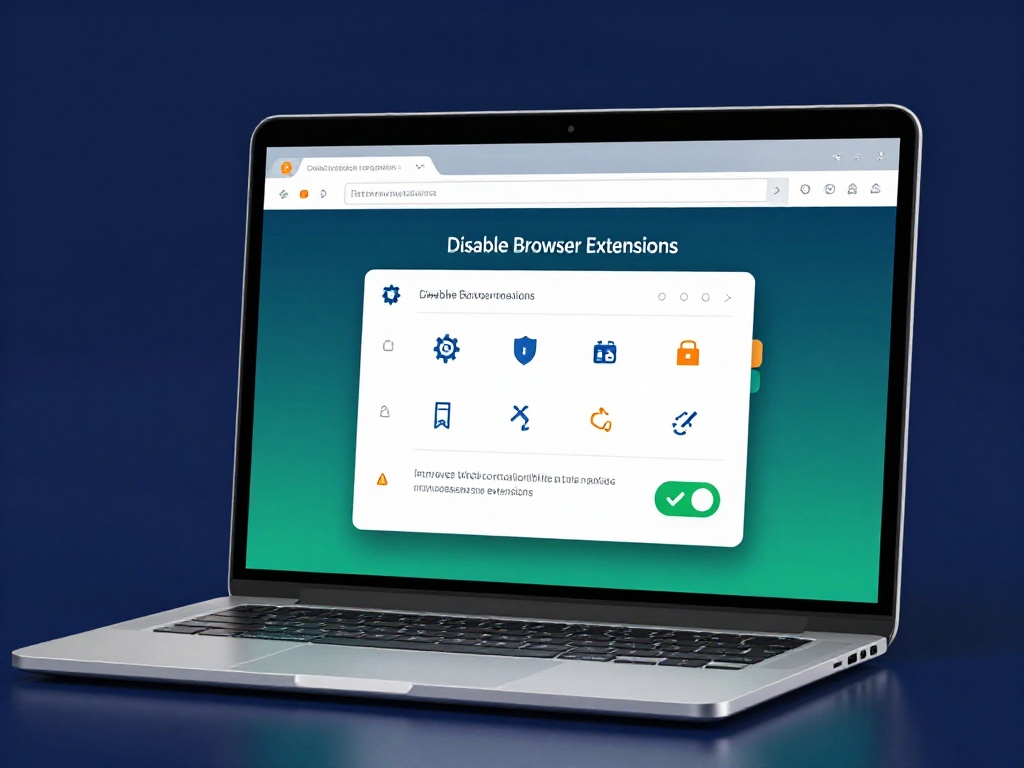
If you’re on a desktop browser, an ad blocker or a privacy extension could be preventing the site from loading. Try opening the site in an incognito or private window first. Incognito mode disables most extensions automatically. If the site loads in incognito but not in your regular window, an extension is the cause. Disable them one by one to find which one.
If the Browser Route Keeps Failing, Try the App Instead
Sometimes a website domain faces more friction from ISPs than a direct app connection does. If you’ve tried all the above and the site still won’t load, downloading the lotus365 apk directly is a reliable alternative. The APK connects through a different route and is often unaffected by browser-level or DNS-level blocks.
When installing any APK outside the Play Store on Android, go to Settings, then Special App Access, then Install Unknown Apps, and allow your browser or file manager to install it. This is a standard Android setting, not a security risk by itself, as long as you are downloading from the official source.
You can also check the lotus365 app page for the latest download instructions and version details.